
Device-specific installation guide
How to Set Up IPTV on MAG Box
MAG devices are different from app-first Smart TVs because the portal relationship and device identifier usually matter before the interface can load. This guide focuses on that portal workflow instead of repeating generic app instructions.
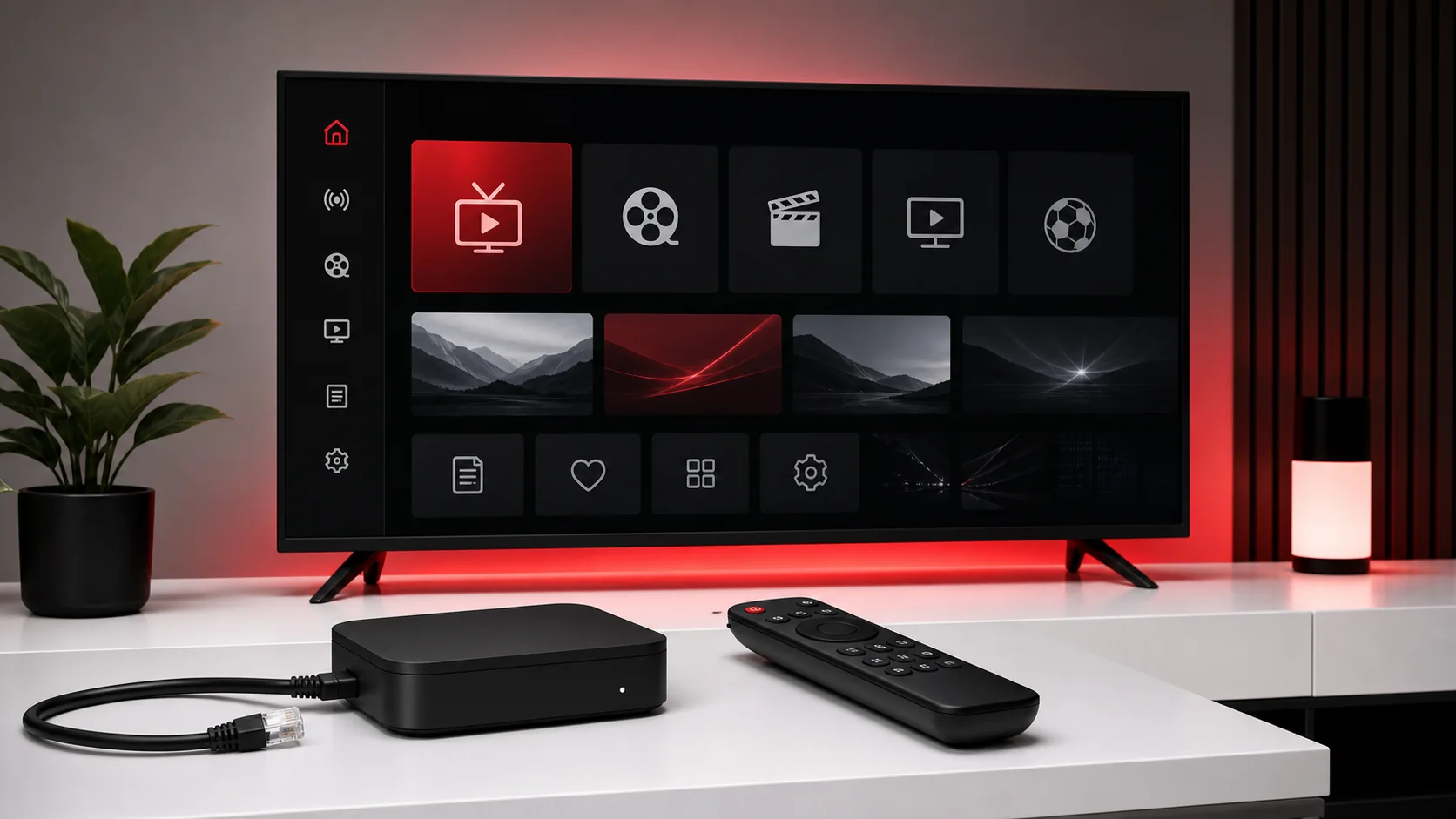
MAG Setup Is a Portal-First Workflow
A MAG Box normally begins with a portal relationship rather than an app-store installation. That makes the first support question different from Android or Smart TV: is the device identifier registered to the correct portal, and is the portal URL entered exactly as supplied? If those two pieces do not match, changing video settings or rebooting the router will not solve the login problem.
Before touching playback settings, write down the exact MAG model, the portal URL format you were given and the device identifier requested by support. Keep that information private. A portal URL or device registration can be account-sensitive, so screenshots should hide information that another person could reuse.
Do not copy a portal address from an old provider or another box. MAG setups are often tied to provider-side registration, so a working address on one device is not evidence that it belongs on another.
- Exact MAG model
- Portal URL from support
- Requested device identifier
- Ethernet or stable Wi-Fi
- Correct date and time
- Remote access to Settings
Prefer a Stable Network Before Diagnosing the Portal
MAG boxes are frequently installed as fixed living-room devices, so Ethernet is a useful baseline when the router is nearby. A wired test removes Wi-Fi signal quality from the first troubleshooting pass. If Ethernet is not practical, confirm the Wi-Fi signal at the television location rather than assuming a high broadband package means the box has a strong local connection.
If the portal screen loads slowly but the box is otherwise online, test another network function before deleting the portal. A weak or inconsistent network can make a correct portal look unavailable. Restart the router once, allow it to fully reconnect, then restart the MAG box and test again.
When only the MAG box has network trouble while phones and laptops work, inspect the box network settings, cable and Wi-Fi connection. When every device is offline, fix the home internet first.
Separate Portal Registration from Portal Entry
Entering a portal URL on the box and registering the box with the service are two separate actions. The box can contain the correct URL while the provider still does not recognize its identifier. If the portal reports authorization or registration trouble, confirm the device details with support before repeatedly editing the URL.
Likewise, a registered device can fail if the portal address is mistyped. Check punctuation, slashes, port numbers when present and accidental spaces. Remote-control text entry is error-prone, so compare the final value with the original message one character at a time.
Avoid sending the same identifier to several providers at once. Keep one active setup path clear so you know which portal should answer the device.
Use a Clean Reboot Sequence After Portal Changes
After saving a portal change, use a full restart rather than opening and closing menus repeatedly. Give the device time to reconnect to the network and request the portal again. If the box caches old portal information, a clean reboot can be more useful than entering the same address several times.
Do not factory-reset the device as a first response. A factory reset removes useful configuration and can turn one portal issue into several setup tasks. Use it only when device-level corruption is strongly suspected and you have the information needed to rebuild the setup.
Record what changed before each reboot. If you alter the portal, DNS, video settings and network at the same time, you lose the ability to identify which change helped.
If the Portal Opens but Playback Fails, Change the Diagnosis
A portal that opens successfully proves more than a blank login screen: the box reached the service and loaded the interface. If playback then fails, move the investigation to stream availability, account status, network stability and player/video compatibility rather than continuing to edit portal registration.
Test more than one category or item. An isolated playback problem is not the same as a broken portal. Note whether live sections, guide data and on-demand sections behave differently, and send that pattern to support instead of reporting only that the box 'does not work'.
If the same account works on another supported device but the MAG box consistently fails after the portal loads, the MAG firmware or hardware generation may be the limiting factor. Older boxes can be less tolerant of newer stream formats and heavier interfaces.
Send a MAG-Specific Support Report
A useful MAG support message includes the model, whether Ethernet or Wi-Fi is used, whether the portal screen opens, the exact error wording, whether the device was recently replaced, and what changed immediately before the problem began. That information is much more actionable than a generic request to resend the service.
Do not post portal URLs, account credentials or complete device identifiers in public groups. Use the official support route and share only what is necessary for the registration check.
If a new MAG box replaces an older one, say that explicitly. Device-bound portal registration may need to be updated even when the subscription itself remains active.
Step-by-step setup
Step 1: Prepare the box and network
Connect the MAG box to a stable network, preferably Ethernet for the first test, confirm date/time, and restart the router once if the network has been unstable.
Step 2: Confirm the device details
Identify the exact MAG model and the device identifier requested by support. Keep it private and confirm that the provider has registered the correct device.
Step 3: Enter the portal URL exactly
Open the portal/server settings and enter the URL exactly as supplied, including any path or port. Check for accidental spaces or missing punctuation.
Step 4: Save and fully restart
Save the portal, power-cycle or restart the MAG box, and allow it to reconnect before judging the result.
Step 5: Test the portal before playback
Confirm that the portal interface loads. If it does not, focus on registration, URL accuracy and network reachability.
Step 6: Test playback methodically
If the portal opens, test several sections and note whether the issue affects all playback or only one category before contacting support.
MAG Box setup FAQ
Why does my MAG Box show a portal authorization error?+
The portal URL may be correct while the device identifier is not registered or no longer matches the provider record. Confirm the device registration with support before resetting the box.
Should I factory-reset a MAG Box when the portal stops working?+
Not as a first step. Verify network, portal URL and device registration first. A factory reset removes configuration and can make diagnosis harder.
Is Ethernet better for MAG setup?+
Ethernet is a useful first-test baseline because it removes Wi-Fi signal quality from the diagnosis. Strong Wi-Fi can also work when the signal is stable.
What if the portal opens but channels do not play?+
Move the diagnosis away from portal registration and check account status, stream behavior, network stability and device compatibility. Test several categories before reporting the issue.